August 19, 2023 7:30am – Santos Beach
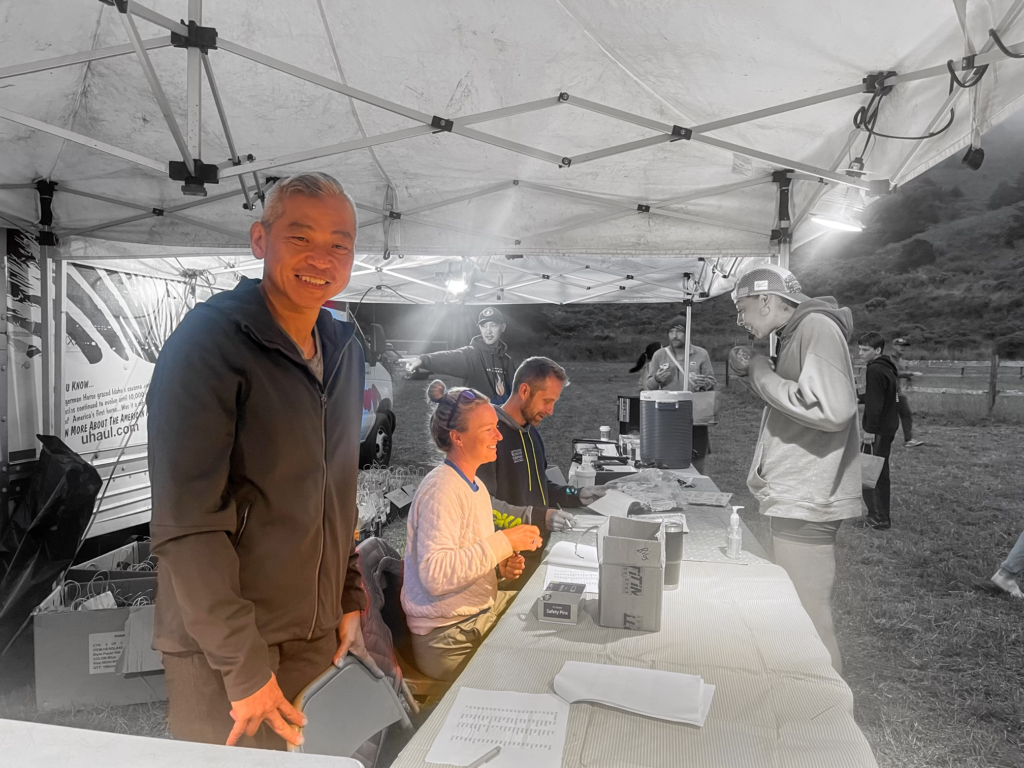
Marco Trisnaldi Checking in Runners

Finish Line at Santos Meadows
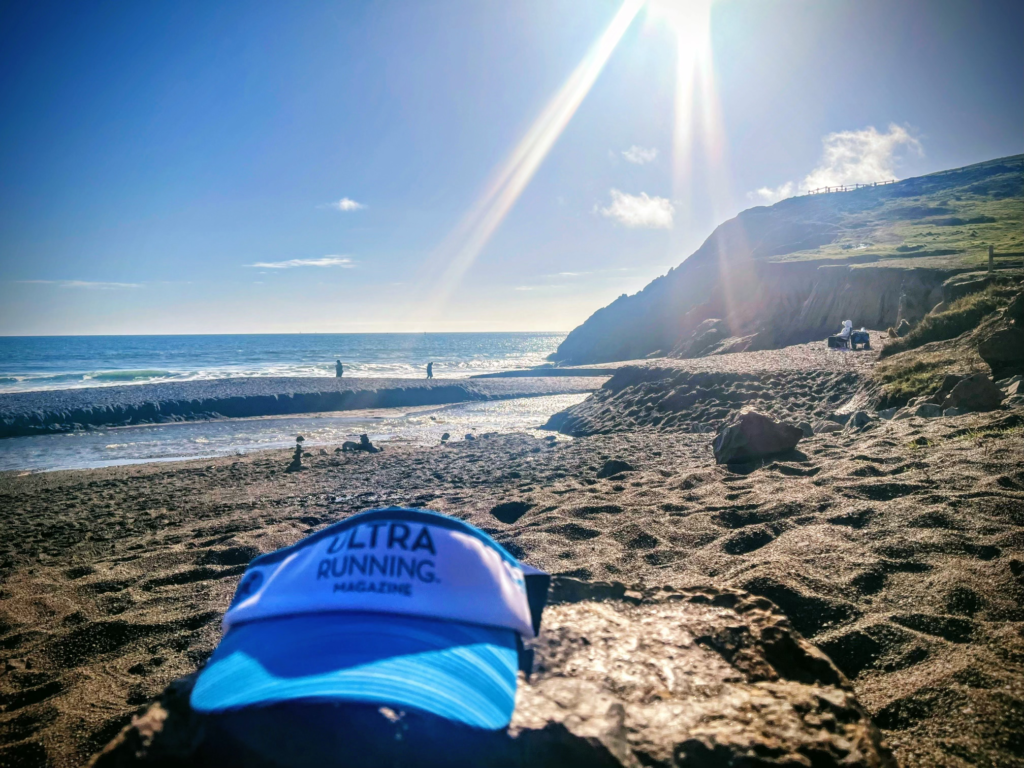
Ultra Running Hat Looking at Muir Beach

Looking South From Coastal Trail

Looking South to Rodeo Beach

Tennessee Valley…
August 19, 2023 7:30am – Santos Beach
Marco Trisnaldi Checking in Runners
Finish Line at Santos Meadows
Ultra Running Hat Looking at Muir Beach
Looking South From Coastal Trail
Looking South to Rodeo Beach
Tennessee Valley…

What is a “coach”?
For someone going to school I think a “coach” still fits the tried and true. You meet almost everyday and the coach tells you what to do… A coach can be at really any age but I think there are quite a few variations on what someone might call a “coach”.
There’s the youth coach for kids. Runners meet a few times a week for a “season” and have a number of events. These are definitely “team” oriented.
There’s the young adult coach in college, probably the largest group of “almost pro’s” out there. More intense, also “team” related.
There are the Olympians that are in just another class and basically spend their lives training…
Then there’s the “old people” that don’t have time for regular training sessions but need guidance. There are dozens of “Apps” out there. I’m currently using Training Peaks and have used Final Surge. I prefer Training Peaks in conjunction with a “Coach Training Plan”. What is missing is the discussion with someone on the quality of workouts, training solo can feel like a grind sometimes.
-A


Orange Theory is a great way to cross train for those who don’t want to do cross-training. The costs are about $25/class plus the little heart monitor doodad ($120).
I REALLY like that there is a penalty of $12 if you don’t show up to a class you signed up for. It really pushes a person to show up and do the workout.

It’s complicated…
If you are like me you are probably not working to compete in the Olympics. I am also fortunate enough that I am not looking to just finish a marathon, I’ve done that. Diet, work/life balance, sleep, training, age, these are all very real factors. I say “it’s complicated” because a good fit is hard to find. Sometimes I think what we need is change to the routine, being open to different things is good. Being open to a regimented program for 16 weeks is another story.
I’ve looked at Ian Sharman’s website, he is an ultra legend so I think it would make sense to use Ian (or someone with experience like Ian) if you are looking at Ultras. Here’s the link to his website: https://www.sharmanultra.com/. His website is detailed but you really do not know exactly what you get. Let me explain: there are multiple coaches and there is a “get to know you” session for $199. This makes sense but how do you know the experience and communication with a particular coach is going to work? How do you know what you need a coach for? I think this is the key question. Diet, for example, can be HUGE and some people (myself) will just think they need to run more. You really do not know what you are getting until you pay for at least a few months (like all coaching programs). You can pay for 6 months or per month (10% more if you pay monthly). Tier 1 for 6 months is $1746, coaches range from $200-$291 a month. Th would get you a single monthly video session. Your plan can only be cancelled if you let them know a month in advance. I’ve seen this before and can cause some tension with coaches (not Ian, another coach) if you happen to cancel and it’s not within 30 days. Makes sense for their scheduling, not so much for the client. I should mention the testimonials do sound great and Ian sounds like an incredbily down to Earth guy. Here’s a link to the testimonials: https://www.sharmanultra.com/testimonials
If you want to do something on your own I think Training Peaks is a good place. There are hundreds of programs to fit all types of runners. I think you can also get a good idea of the focus of various coaches offered on the platform. For example, you can focus in on Boston or New York and get a specialized plan based on your speed (beginner, intermediate, competitive). The website is https://trainingpeaks.com. I like Traning Peaks because is also integrates with Garmin and Coros much like Strava. There are “do it yourself” programs and coach add-ons. Honestly, the site seems too big to offer a personal approach
Another option is the Greg Mcmillan, he has a $350 “coaching program” (kind of cool) and he has a monthly subscription model. He has “Run Team” for caoching for $39.95 ( I honestly cannot see how you can talk to someone one on one for $39.95/month) Then he just has plans sold in “Training Peaks” and “Final Surge”. As far as coaches that have taken their knowledge and monetized their coaching my hat is of to McMillan. Tons of Plans, tons of options and the guy has lots of experience. The site boasts 124,842 plans sold!! If he is making $10 a plan (an he’s probably making more) that’s some serious scratch. His website links over to training peaks, lots of options. Here’s his website: https://www.mcmillanrunning.com/
There’s another option for the less competitive types and the name is great, it’s the “Marathon Training Academy”. Trevor and Angie are really about the experience and general health and less about setting PRs. They are not elite but they know what is needed to complete a marathon. Angie is the runner, Trvor is the media guy. The more I listen to their podcast (and the older I get) I see a lot of value in their approach. They have about 6 coaches, more geared towards finishing a marathon and MILLIONS of podcast listens. Their website is at https://www.marathontrainingacademy.com/. Price is $199/month, pretty standard.
For the serious, I mean , really serious, there’s Ken Rideout and he has a new website called “Rideout Strong”. The webpage just says “lets do this”. It’s not cheap and the plans are not “a la carte”. You jump in on their schedule (not yours) (Spring Summer or Fall). This seems kind of odd to me because so many runners have different cycles for particular races. For $999 you get 10 weeks of training and access to a community. Mario Fraioli seems like the key to the coaching group (there are three coaches). The website is new and there are just a few testimonials and they want you to join (obviously). Seems like a lot to jump!! Website is https://www.rideoutstrong.com/
Then there’s “runners connect”. Kind of like marathon training academy. They provide different levels for plans, training and coaching. They DO NOT own the .com. Their website is at https://runnersconnect.net/. Simple, makes sense.
Update: I decided to go with Training Peak with a Greg Mcmillan 50k plan. Not sure if I’ll stick with the plan!!! I really like the App and the ability to track my data seamlessly from my Coros watch to the Training Peaks App/website.